
Let guests see the dish before they order it.
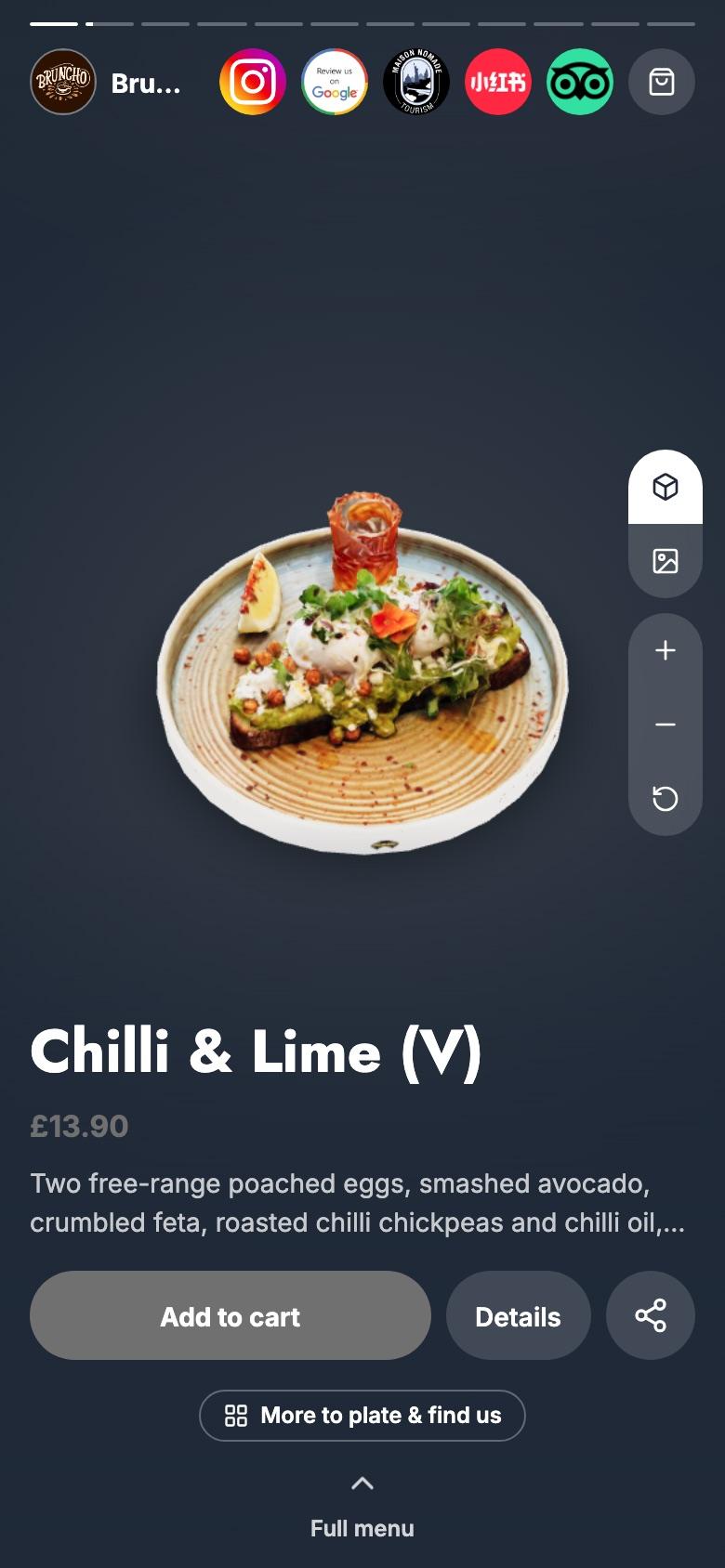
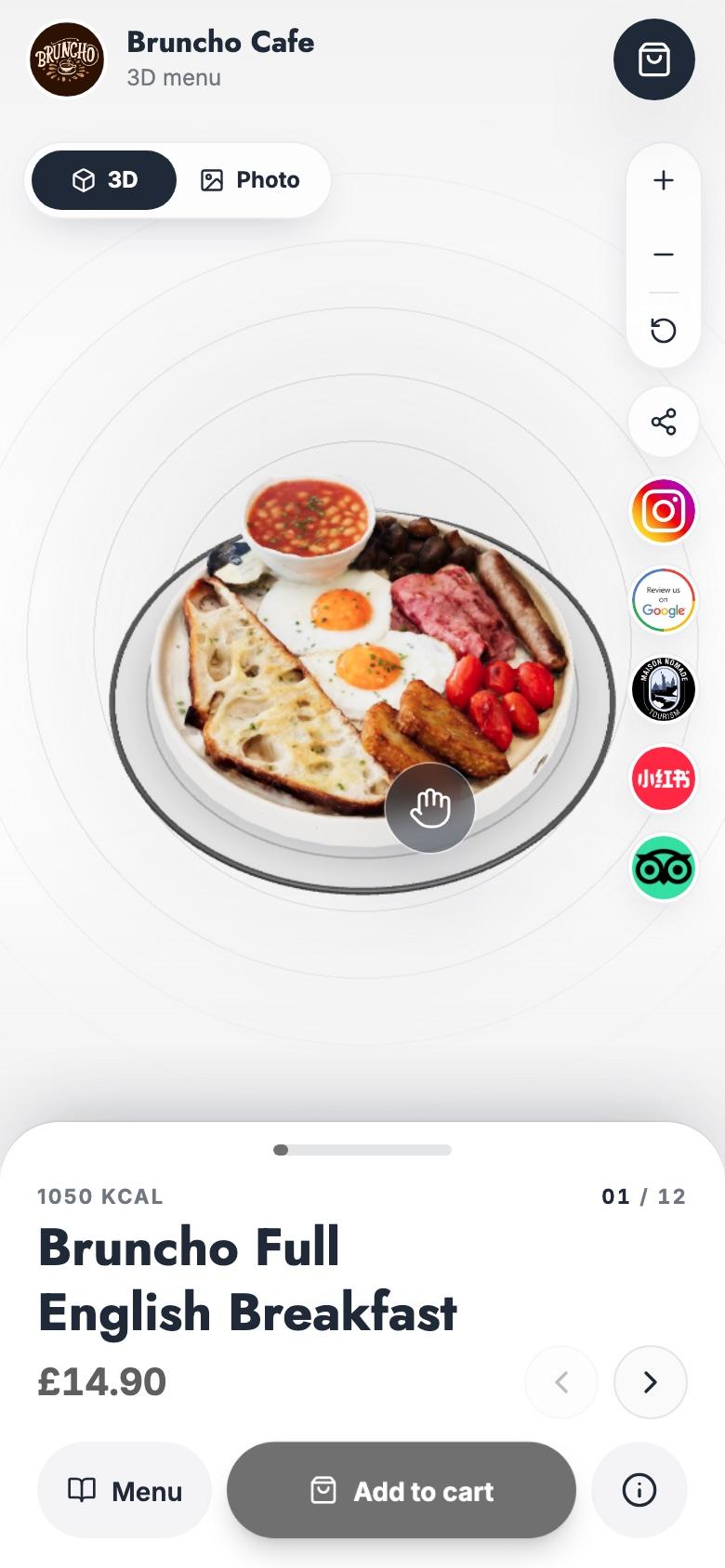
Guests scan the table QR, spin each dish in 3D and place it on the table at real size. Then they add it to the order from the same screen. No app to download.
- No app to download
- AR on iPhone and Android
- 21 menu designs
Trusted by 100+
of clients.


From the table QR to the order in four taps.
- 1Scan the table QRIt opens the AR menu for that table, with the full menu one tap away. Your ordering site shows a "See our dishes in 3D" card too.
- 2Spin, zoom and swipeDrag to turn the dish, zoom in on the detail, swipe to the next one, and switch between 3D and the photo.
- 3Place it on the table"View in AR" puts the dish on the table at real size, using AR Quick Look on iPhone and Scene Viewer or WebXR on Android.
- 4Add it to the orderAdd to cart sits right under the dish. Dishes with options open their details first, then go to checkout.
Spin a real dish.
These are real 3D scans, the same kind of file your guests see. Drag to turn, scroll or pinch to zoom. On a phone, tap View on your table to place it in AR.
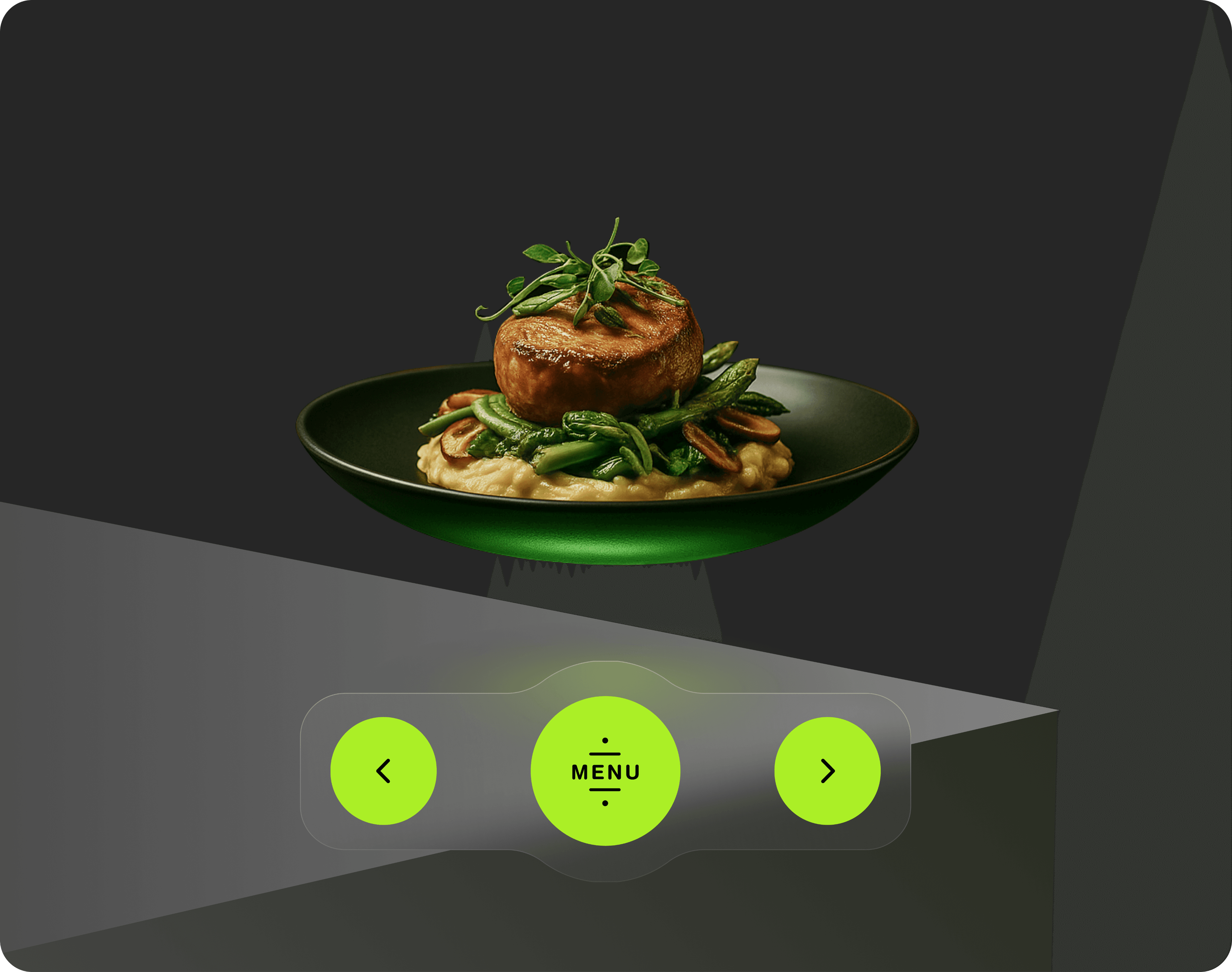
Drag to turn · Scroll or pinch to zoom
Upload once. Tune the light. Go live.
Everything lives in your olivv dashboard under 3D Models. Guests see the dish photo until a model is ready, so nothing looks broken while you set up.
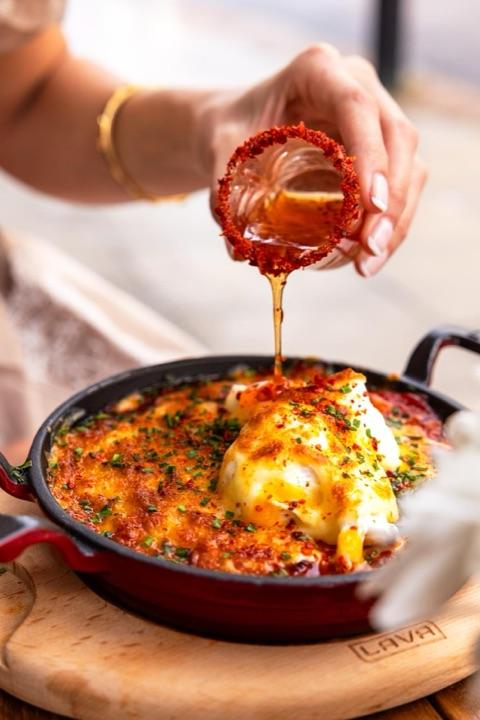
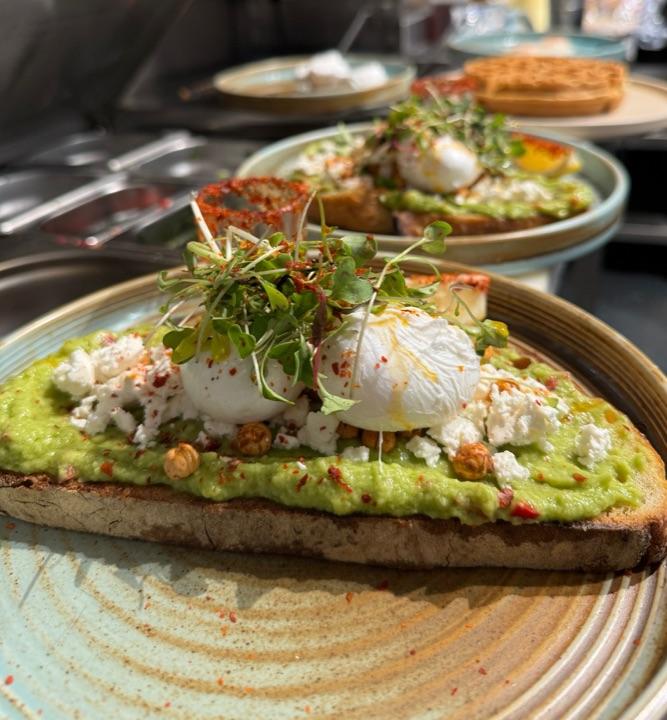
- 1Upload a .glbDrag and drop a model onto a dish. It's checked and processed automatically.
- 2Set the running orderDrag dishes into the order guests swipe through on the table.
- 3Tune the lightSet the angle, tilt, brightness and glow for each dish, and check it in the phone preview.
- 4Pick a designChoose one of 21 designs, then switch the offers banner, category strip and diet chips on or off.
Built for the table, not the app store.
- Table QR to 3DEach table's QR opens the AR menu for that table. No download, no sign-up.
- 3D in the browserGuests turn, zoom and swipe through dishes right in their phone's browser.
- AR on iPhone and AndroidPlace a dish on the table at real size with AR Quick Look, Scene Viewer or WebXR.
- Order from the 3D viewAdd to cart from the same screen, then pay through your olivv online ordering.
- Photo until 3D is readyWhile a model is processing, guests see the dish photo with "3D view coming soon".
- Offers bannerPut today's offer at the top of the AR menu, so every table sees it.
- Diet chipsOptional Veg, Non-veg, Plant based and Seafood chips help guests find their dishes fast.
- Share a dishGuests can share a link straight to a dish, which opens it in 3D.
- On your olivv websiteYour olivv site serves the AR menu too, so it works from your own domain.
A design for every room.
Pick the look that fits your venue, from a neighbourhood café to an omakase counter. Your brand colours run through every one, and you can switch at any time.
- 21 designs, grouped by venue type
- Your colours and logo in every design
- Toggle the offers banner, category strip and diet chips
21 designs
- Default
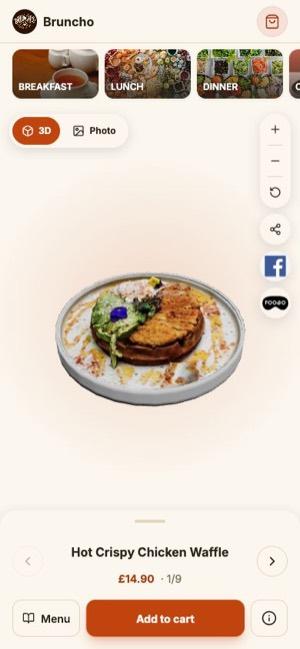
ClassicEveryday 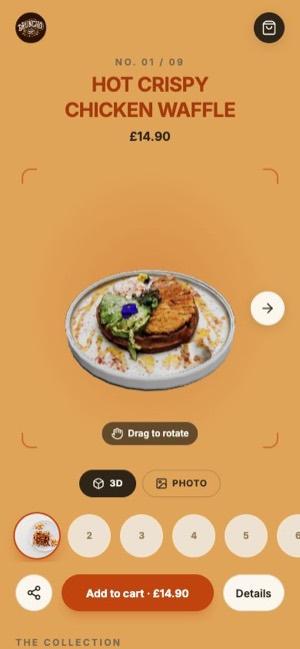
ShowcaseEveryday 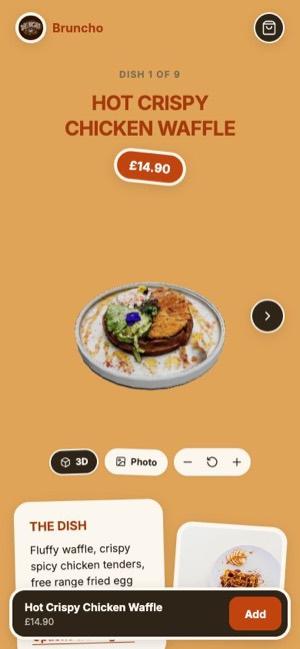
StickerEveryday · Cafés & bakeries 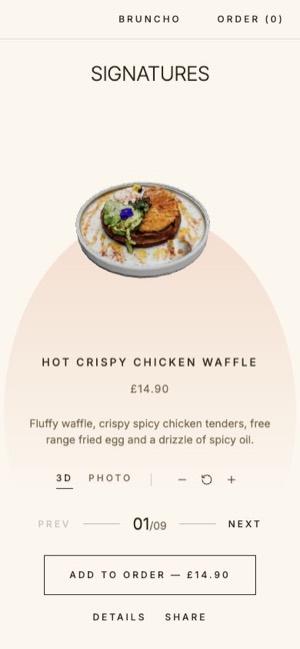
EditorialEveryday · Fine dining 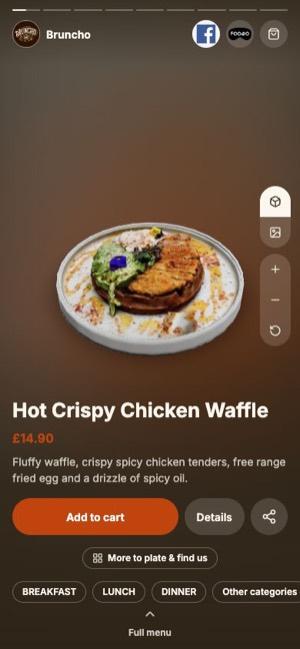
ImmersiveEveryday · Bars & nightlife 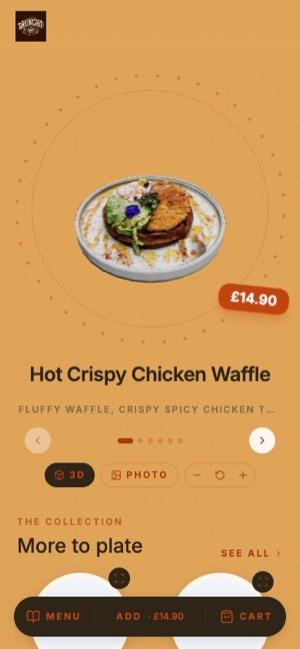
ChocoberryCafés & bakeries 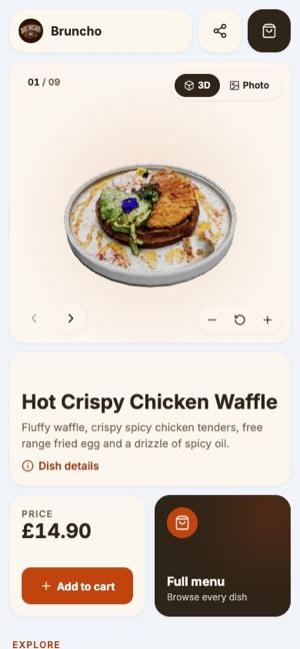
BentoEveryday · Cafés & bakeries 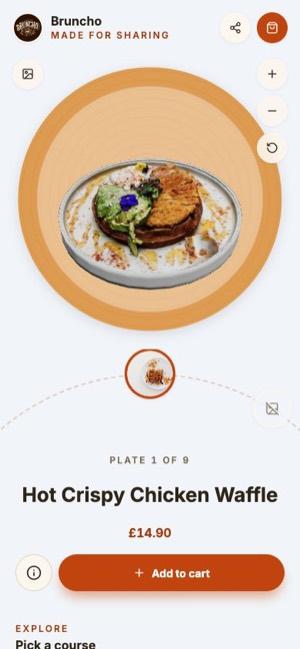
Lazy SusanEveryday · World cuisine 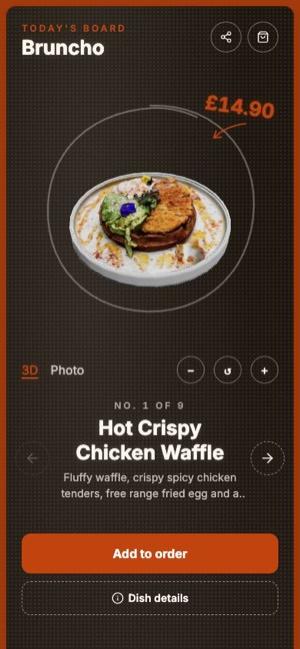
ChalkboardCasual & street · Bars & nightlife 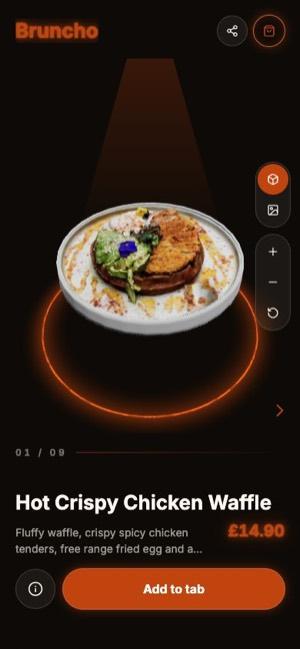
Neon LoungeBars & nightlife 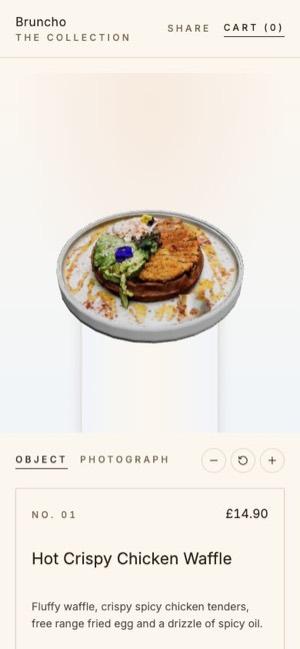
Gallery PlinthFine dining 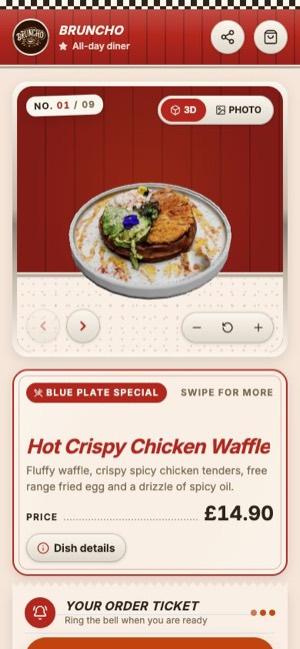
DinerCasual & street 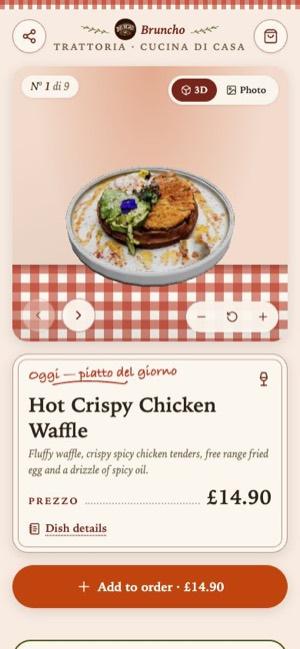
TrattoriaWorld cuisine 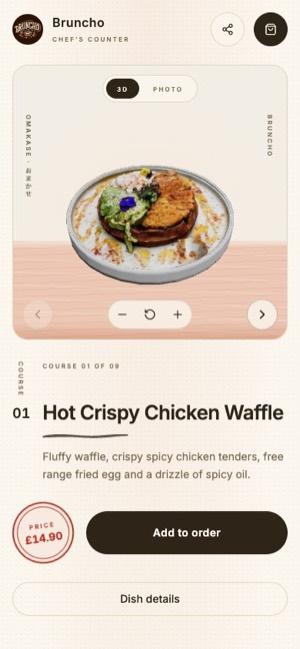
OmakaseWorld cuisine · Fine dining 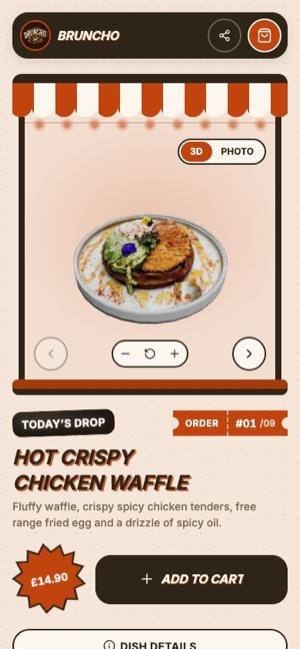
Food TruckCasual & street 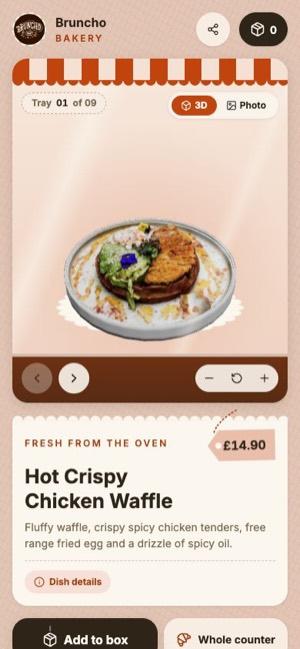
BakeryCafés & bakeries 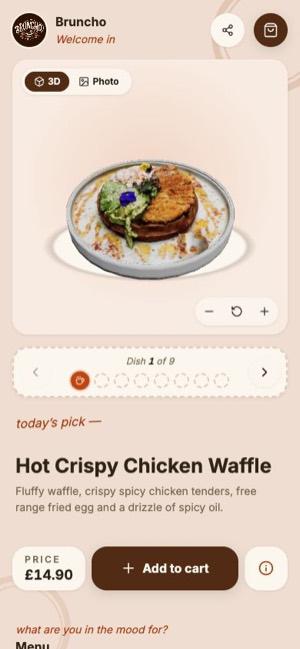
Coffee HouseCafés & bakeries 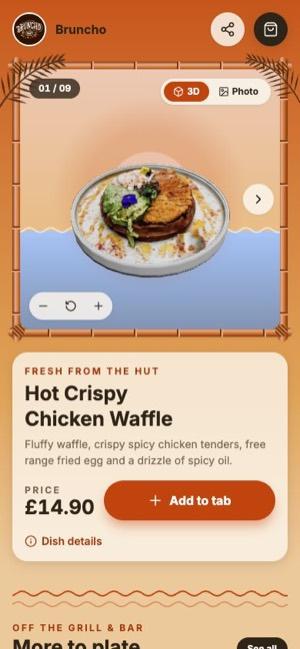
TikiBars & nightlife 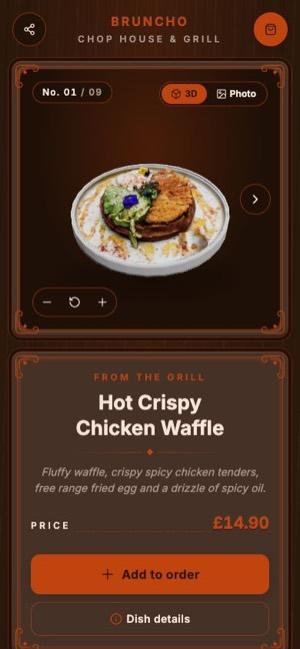
SteakhouseFine dining 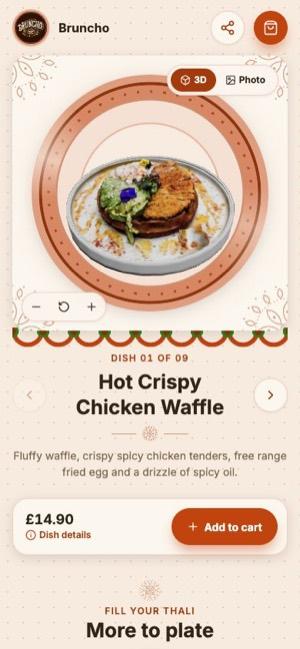
ThaliWorld cuisine 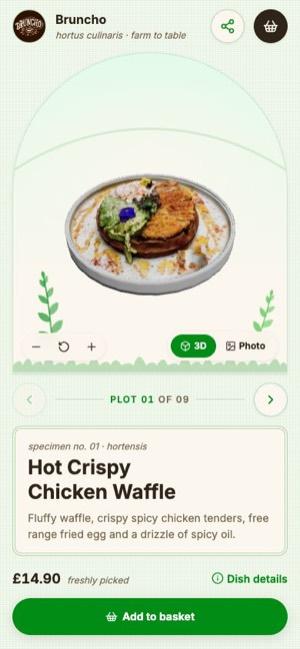
GardenCasual & street · World cuisine
One guest, one journey, four products.
Guests book a table, scan the table QR to see dishes in 3D, order and pay, then send a friend a gift card. Every step runs on olivv, so each one leads to the next.
- 1 / 4Book a tableFrom your website or Instagram, in a few taps.Table Booking
- 2 / 4See it in 3DScan the table QR and spin each dish before ordering.You're here
- 3 / 4Order and payAdd dishes straight from the 3D view, or order for delivery and collection.Online Ordering
- 4 / 4Gift a friendA gift card they can spend online or in the restaurant.Gift Cards
Questions, answered.
Do guests need an app?
No. The AR menu opens in the phone's browser from the table QR, so guests can start in seconds.
Which phones can place dishes on the table?
iPhones with AR Quick Look and Android phones with Scene Viewer or WebXR AR. On every phone, guests can still spin and zoom each dish in 3D.
How do we get 3D models of our dishes?
Upload a .glb file for each dish in your dashboard under 3D Models. If you'd like help creating models, talk to us.
What if a model isn't ready yet?
Guests see the dish photo with "3D view coming soon" until processing finishes. Nothing looks broken in the meantime.
Can guests order from the 3D view?
Yes. Add to cart sits right under each dish, and the order goes through your olivv online ordering.
Will it match our venue?
Choose from 21 designs grouped by venue type. Your brand colours run through all of them.
Can I choose which dishes appear, and in what order?
Every dish with a ready model appears, in the order you drag them into in your dashboard.
Put your menu on the table in 3D.
Set up your AR menu in your olivv dashboard, print your table QRs, and let your dishes sell themselves.